Previous topicNext topic

Help > ArtisanRV_xx.4.1.0 Detailed Planting >

ArtisanRV

Create Detailed Planting

Previous topicNext topic
Introductory Summary

The Create Planting tools enable landscape professionals to place detailed planting directly within a Revit model. Using plants and mixes selected from downloaded palettes, users can create single specimens, linear planting and area planting, complete with configurable symbols, tags and specification data. These tools support efficient planting design workflows while ensuring that planting information remains coordinated throughout the model, schedules and project documentation.


Command
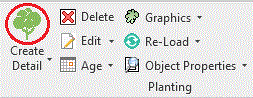
Create Detail Planting is available from the Planting panel.


Users are able to create detail planting from Concept Planting content using the Substitute Planting pop-down option from the Create Detail menu.


Purpose

To place planting in the Revit© model as individual specimenslinear items (hedges, avenues), areas (beds, woodlands). Plants can be placed as linear items or areas as either single species/varieties or mixes and with overlay or underlay planting .

Planting to be placed is selected from downloaded Palettes and users can Open Palette Builder or Download Palettes from the Create Planting dialog.


 Usage

Select Palette - Select from list of downloaded palettes

Area Planting - Place single species/varieties or mixes of planting into a floor, closed region or split topo.

Linear Planting - Place single species/varieties or mixes of planting as a hedge or avenue.

Single Planting  - Place single species/varieties onto topography.

Download Palettes- Connect to CSD Palette Builder to download palettes to local machine

Standard Workflow - Create Detailed Planting


Notes

Planting can be placed in either Imperial or Metric units and users are able to switch dynamically between either system. [see Units ].

Area and Linear Planting can be applied by a Cover Percentage (Cover %) that defines the coverage of the selected area to be covered (default is 100%).