

The Filter option 'All Labels' is selected by default when running the Edit Labels tool.
Select All Labels from the Filter by menu (default)...
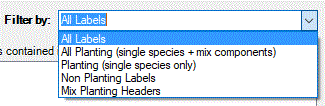
When the 'Filter by' option is set to All Labels, all CS Artisan labels are displayed in the seletion list box, including Single Species + Mix Headers + Mix Components + Non-Plant Labels.
The selected labels list displays all CS Artisan labels...
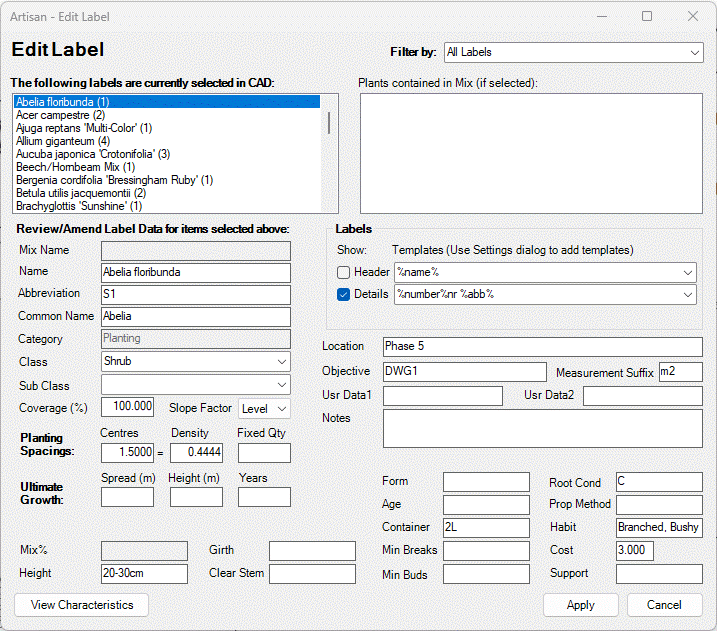
For Area and Linear Planting, access to Edit Planting controls depends on whether you are wanting to modify single species or planting mixes and also what you are wanting to change. If you are selecting multiple planting labels to Edit, 'All Labels' will be displayed by default and users are able to select/deselect labels using the 'Filter by' options.
All Labels - All CS Artisan labels are displayed, including Single Species + Mix Headers + Mix Components + Non-Plant Labels.
Change details as required for associated specification information or user data and notes. Note that users are able to select multiple records for editing.
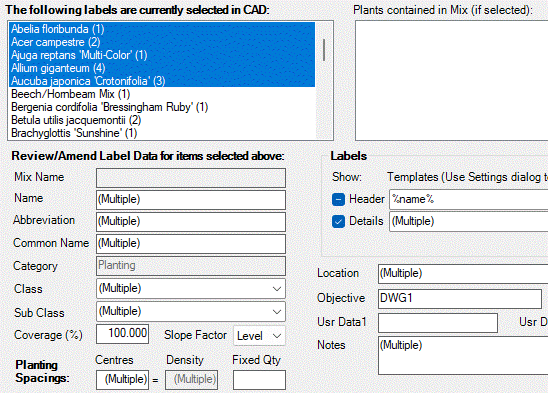
If different values have been assigned to fields when more than one label is selected, the entry "(Multiple)" is displayed accordingly.
Note that applying changes to fields when multiple selections have been made, will result in ALL SELECTED labels being edited accordingly.
Plant Spacings
Plant Spacings values are used to calculate planting numbers for Area Planting and Linear Planting. If values are displayed for single plant labels, plant quantities in labels and schedules (reports) are based on the number of items individual plant components selected.

The Labels area is divided into 'Header' and 'Details' and users are able to define what information is displayed in either section and whether or not each is displayed (shown).
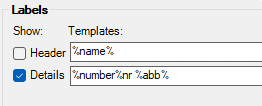
Header and Details are defined from a combination of 'expressions' and 'free text'.
Label Headers are stacked above Item Details and can be applied for both single species planting labels or for planting mixes (comprising a mix name and associated planting components, specifications and percentages).
Users are able to alter the percentage coverage for linear or area planting by entering a value in the Coverage % field. Note this is not available for individual plants that are part of a Planting Mix.

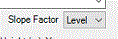
Users are able to change the slope factor for linear and area planting (single species or mixes) by selecting a value from the Level pop-down menu.
Characteristics
The View Characteristics command is available at the bottom left of the Edit Planting dialog. Note that the View Characteristics option is only available for single planting species.
Pick Apply to commit changes to the selected label(s).