

The CS Buddy App contols the instalation, updating and licensing of CloudScapes products (CS ArtisanRV, CS ArtisanAC and CS ArtisanBC).
Note that the Buddy App needs to be operational for
licensing and needs to be installed initially with full administrator
privileges
. There is no requirement for users to manually download or install
updates as the CS Buddy App is designed to handle this service in the
background using pre-authorisation.
The Auto Update and Install Services have been created to make it easier for users to install CloudScapes products and to access the latest builds and features without the need for manually checking, downloading and installing.
After logging in to your account via the CS Web App, you can download the CS Buddy App from: My Account - Downloads.
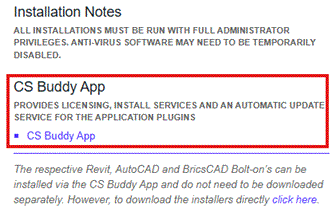
Once downloaded, install the CS Buddy App with full administrator privileges. This will create an update service and launch the CSD Buddy App in the service icon area (taskbar) of your desktop for each user as they login.
Full read/write access is required to C:\Artisan Documents, where user-defined Artisan settings files and palettes are stored.
Once installed, the CSD Buddy App will monitor your installed CSD products and notify you of any available updates, which then can be run automatically without the need for separate downloads and installations.
The CS Buddy App is located in the Windows taskbar and right-mouse picking the CloudScapes icon displayes the CS Buddy App menu.
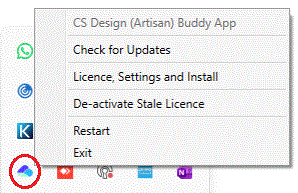
Select CS Design (Artisan) Buddy App to display the About dialog...
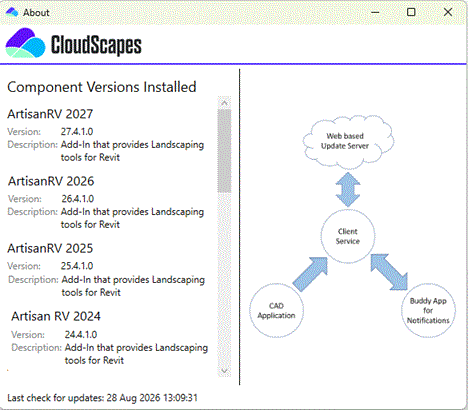
The About dialog displays the installed components on the left side, showing the current version of CS ArtisanRV.
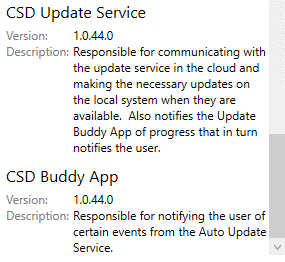
Scroll the list of installed applications to display the version of the CS Buddy App and Auto Update Service...
Further tools from the the CS Buddy App menu...