

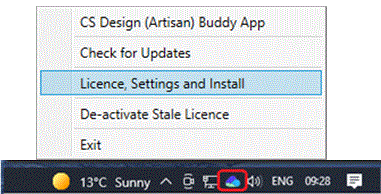
Use the CSD Buddy App to install the required products by right clicking the Buddy App icon in the taskbar and selecting “Licence, Settings and Install” and follow any on screen instructions.
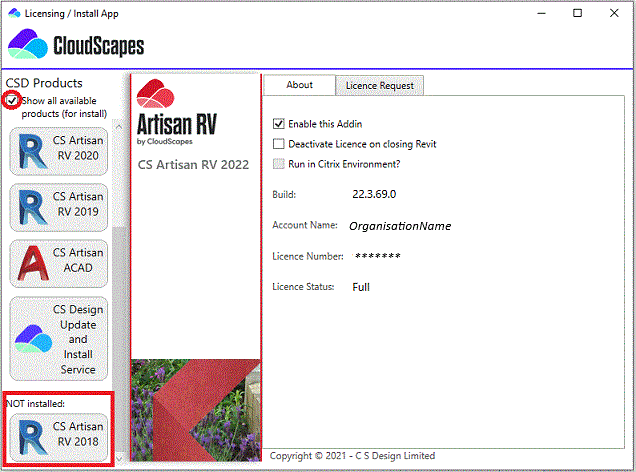
Pick ‘Show all available CSD Products’ and select the required program from the ‘NOT installed’ list…
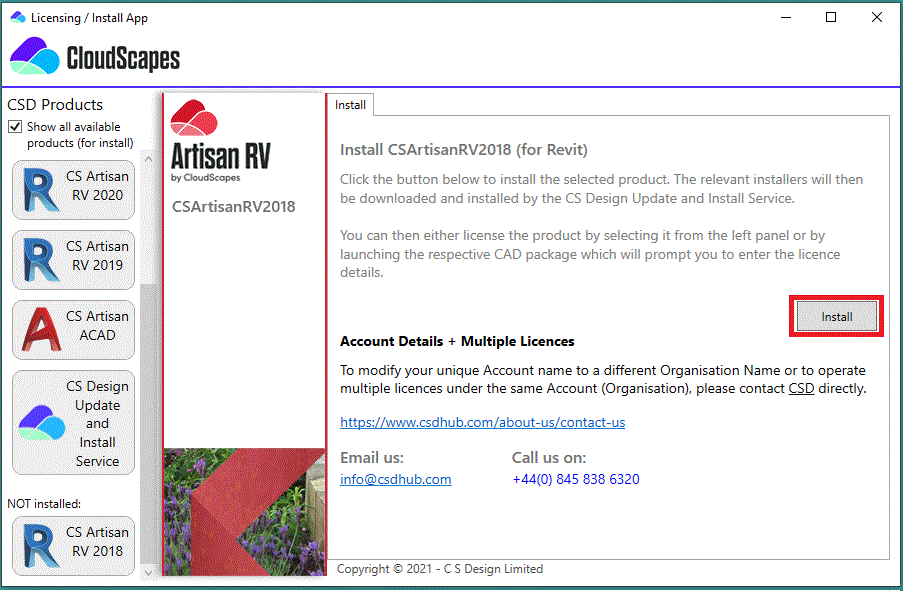
Select the new
product from the ‘NOT installed’ list and pick Install…
Ensure you are operating the most up to date version of your
software by right-clicking the Buddy App icon in the taskbar and selecting
“Check for Updates”.
Note that the Buddy App needs to be operational for
licensing and needs to be installed initially with full administrator
privileges. There is no requirement for users to manually download or
install updates as the CSD Auto Update service is designed to handle this
service in the background using pre-authorisation.
Full read/write access is required
to C:\Artisan Documents, where user-defined Artisan settings files and palettes
are stored.
Pick Trial to access a trial version of CS ArtisanRV.
Pick Full to authorise or re-authorise your purchased CS ArtisanRV licence.
Select De-Activate if you wish to deauthorise ArtisanRV on the current machine.
CloudScapes products can be deployed in different types of virtualised environments Artisan Deployment in Virtual Desktop Environments .