

Data Tab - Report Designer
Defining what records are included or excluded from the report, which fields are visible and how records are sorted or grouped.
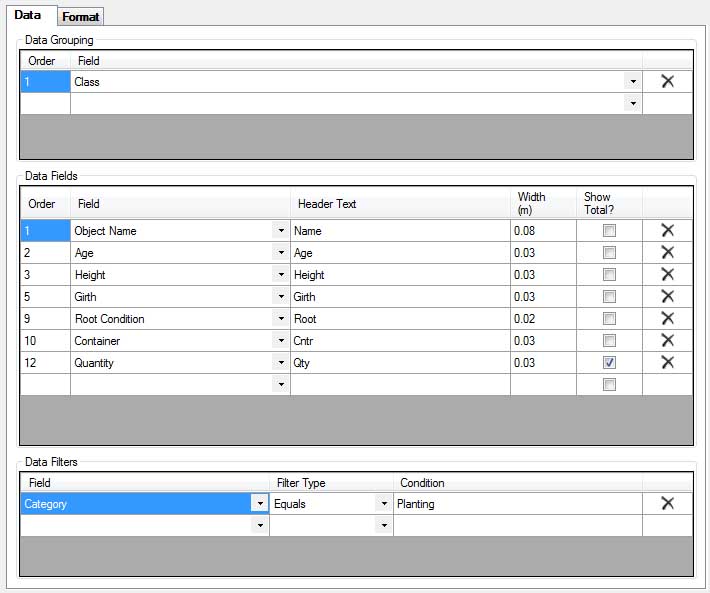
The Data tab affects the data selections and display with the report
Data Grouping
If records are added in the data grouping section any report based on this template will be sub divided according to the values in the data grouping records.
Order - The Order of the grouping is only relevant if the report has at least two grouping fields. In that case the sub reports will be ordered by the values of the fields in the grouping fields ranked by this Order value.
For example if grouping by Class (Order 1) and Subclass (Order 2) then Shrubs - Roses will be beforeTrees - Conifer but if grouping by Subclass (Order 1) and Class (Order 2) then Conifer - Trees will be before Roses - Shrubs.
Field - The source field for the values the report will be grouped on. In the above example the report is being grouped by Class. This will result in a seperate sub report for Trees, Shrubs etc.
Data Fields
These are the columns that will appear in the report. At least one column is required.
Order - The order left to right of the columns. Results in the schedule will be displayed alphabetically by the first field, so, if Data Grouping includes 'Class' (i.e. Bamboo, Herbaceous, Shrub, Tree), and 'Object Name' is Order number 1, records will be arranged alphabetically by 'Plant Name' within the classes.
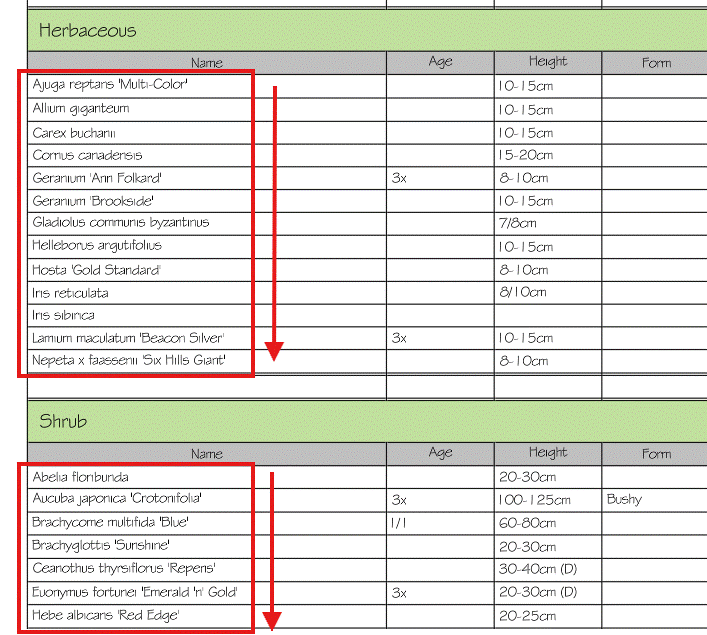
Field - The source field for the data in the column.
Header Text - The column heading (only if Show Column Headers is ticked in the Layout section)
Width - The column width. This is the printing width based on the Scale entered in the Layout section. So if 0.1 is entered and the scale is 1:100 then the column will actually draw at 0.01 x 100 = 1 wide. Then printing out at 1:100 the printed width will be 0.1
Show Total - If ticked the column will have a total calculated and displayed.
Note that users are able to display Plant Spacings as either Centres or Density and the system automatically converts between the two options [see Plant Spacings ].
Data Filters
These are the values that data is checked against to determine if labels are included in the report.
Note that, by default ALL Artisan Labels will be included in a report: for this reason, the Data Filter <Category Equals Planting> will only display records where the category equals planting (i.e. non-planting is excluded).
Field - The source field for the comparison values that will be used for filtering.
Filter Type - The type of comparison used. The possible Filter Types are:
Condition - The filter condition that the field value is compared with.
Data Filters are available for all Artisan planting information including Additional Data Fields assigned to labels.
File

The file menu allows the edited report to be saved.
Save - Save the report to its source. If the edit has been initiated from the preference file then the report will be saved back to the preference file. If the edit has been initiated from an existing report then the existing report will be edited.
Save to File - Save the report to an Xml file. The file can then be used in another drawing, on another machine as needed.
Close - Close the edited report without saving.
Links