Can I
switch a licence between machines?
How do I
move a licence to another machine?
Can I
access CS Artisan on another machine?
Am I
able to activate Artisan on a different PC?
Do I
have to deactivate my licence to move to a different
machine?
Short Answer
Yes. CloudScapes licences can be transferred between machines, but
the licence must first
be de-activated on the
currently authorised computer. Once de-activated, the licence can be activated
on another machine using your CloudScapes login credentials and
the Request Full
Licence option. Organisations that regularly move
licences between computers can also enable automatic licence relinquishment to
simplify the process.
Details
Activate
and De-Activate CloudScapes Software Licences
Licences are allocated against a specific machine using the Activate
tool.
When the program is run for the first time with the respective Plugin
installed, you will be asked to authorise your licence. Enter your
unique login credentials and pick: 'Request Full
Licence'.
Alternatively, you can request a licence by using the “Licensing” tab in
the same “Licence, Settings and Install” form you used to install the product
from.
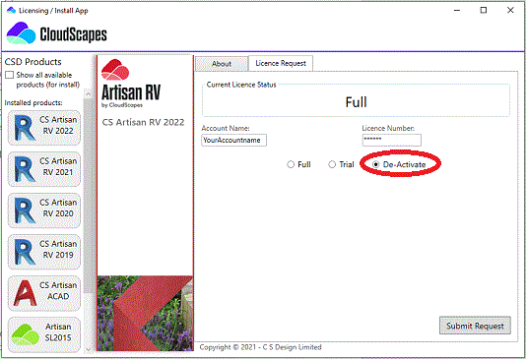
If a licence is
required on another machine, the previous machine must first be
de-activated. This is accomplished by selecting De-Activate from the
Licence, Settings and Install option from the CSD Buddy App (Windows taskbar) on
the machine that is currently activated…
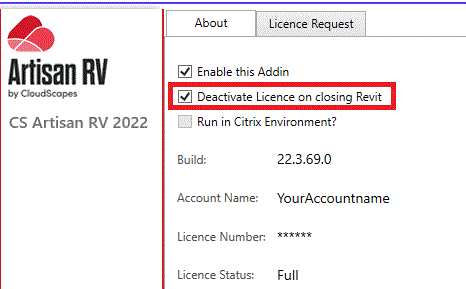
If an organisation frequently wants to activate and de-activate licences
for multiple machines, there is an option to automatically relinquish licences
back to the organisation account from the Licence, Settings and Install option
from the CSD Buddy App (Windows taskbar)…
How do I
ensure I am operating the most up do date version of my CloudScapes
product?
Where do
I update CS Artisan?
How do I
update CloudScapes products?
What is
the Check for Updates tool?
How do
you provide updates?
What is
the most current version of your software?
Is there
a Version History somewhere?
How do I
know about the latest features and enhancements?
How are
bugs fixed?
Short Answer
To ensure you are running the latest version of your CloudScapes
software, regularly use the Check for
Updates option in the CS
Buddy App. This downloads and installs the latest features,
enhancements and bug fixes for CloudScapes products, and provides access
to Version History so you
can review what's new in each release. If prompted to update the CS Buddy App
itself, install the update and restart the service before checking for product
updates again.
Details
It is recommended that users regularly run the Check for Updates option
from the CS Buddy App to ensure they have access to the latest features,
enhancements and fixes.
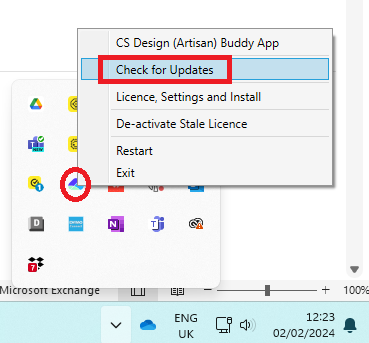
Running Check for Updates, ensures you have access to all new features
and enhancements and, If you are experiencing an issue, it may be that this has
previously been resolved in an update.
To access the latest updates to CloudScapes products...
- Ensure any installable
CloudScapes products are closed (i.e. CS ArtisanRV, CS ArtisanACAD, CS
ArtisanBC).
- Run Check for Updates
from the CS Buddy App (Auto Update Service).
- The Auto Update
Service will download and install the latest updates for CloudScapes products
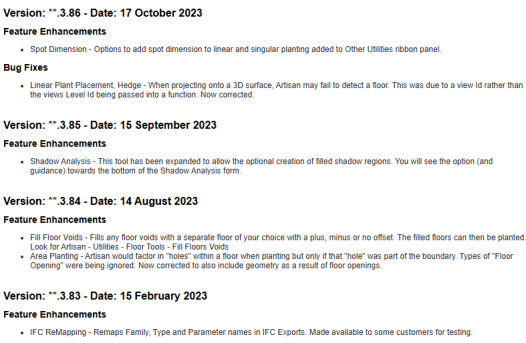
(CS ArtisanRV, CS ArtisanACAD, CS ArtisanBC) and will offer a Version History
link so that users are able to see a record of the new features, enhancements
and bug fixes.
- If an update is
available for the CS Buddy App (Auto Update Service), you may be directed to
pick the ‘cog’ icon to initiate the process. Note that the CS Buddy App is
responsible for product installs, auto-updates and product licensing; it is
essential that users are running the most up to date version of the service to
ensure access to CloudScapes essential services. Pick the ‘cog’ icon to
install the latest version. After confirmation that a new AutoUpdate service
has been installed, it is recommended that users run the ‘Restart’ option from
the CS Buddy App menu: this ensures the newly installed service is running.
- Users may need to
re-run Check for Updates if a new AutoUpdate service has been installed.
- After installing new
CloudScapes product versions and sometimes after major release updates, it may
be necessary to (re-)activate licences: this can be done by selecting the
Licensing option from the CS Buddy App (Licence, Settings and Install).
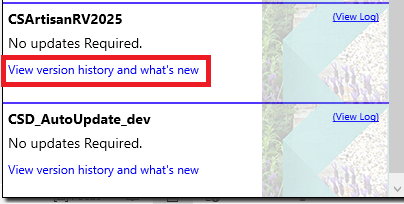
- Select View Version History link and what’s
new to access details about installed feature enhancements and bug
fixes…
My Licence
is not deactivating - what should I do?
How can
we release licences?
Why can
I not access licences from our account?
Why am I
unable to reassign licences?
How can
I log out of Artisan?
What
advice is available if ArtisanRV has become stuck on my computer?
Short Answer
If your licence will not deactivate, first ensure you are running
the deactivation process on the same machine where the
licence is currently activated, as licence information is stored
locally. Account administrators can use the Admin
Portal to identify which machines have active
licences. For users working in Virtual Desktop
Environments (VDI/VMs), additional configuration may be required to
enable automatic licence deactivation and prevent licences becoming locked to
inactive sessions.
Details
Licence
key records are saved to the local machine registry, so deactivation needs to be
run from the local machine that has been activated for CS Artisan. Licences can
be manually
deactivated or automatically
deactivated in your account.
Administrators
are able to view licence
activations for their account via the Admin
portal. This will identify the machines that are currently activated and the
licence type that is assigned.
Virtual
Desktop Environments
Users
operating in Virtual
Desktop Environments require configuration with the
associated Registry settings to ensure Automatic deactivation is
enabled. It is recommended that this is carried out by
an Administrator (or via group policy).
Why am I
getting the message 'license expired'?
Why can
I no longer access Artisan?
What do
I need to activate the licence?
What
does 'license expired' mean?
Short Answer
The 'Licence
Expired' message is displayed when your
organisation's CloudScapes subscription has reached its expiry date. CloudScapes
products are licensed on a renewable subscription basis, and access to the
software is suspended until the subscription is renewed. Once the subscription
has been renewed, you can reactivate your licence using your CloudScapes login
credentials. If you believe this message has been displayed in error, please
check for any outstanding subscription invoices or contact CloudScapes Support
for assistance.
Details
The
message 'license exceeded' is displayed when an organisation's CloudScapes
account has expired. CloudScapes products are supplied on a renewable
subscription basis and users must ensure subriptions remain active to ensure
continued access to software products. When payment is received against a
subscription renewal, the associated organisation's account is automatically
extended to a new expiry date and the user is then able to (re)activate the
software licence using credentials provided.
Please
check if there is an outstanding invoice in respect to your CloudScapes
subscription or contact
CloudScapes to reactivate your CloudScapes
account.
Why is my trial license reported as
expired?
Why is
licence expired?
How come
I can no longer access my trial?
Why has
my trail expired?
Can I
restart my trial?
Why is
my trial no longer available?
Short Answer
The 'Licence
Expired' message is displayed when your
organisation's CloudScapes subscription has reached its expiry date. Trial
licences of CloudScapes products expire 30 days after initial activation.
To continue operating CS
ArtisanRV after a trial licence has expired, a subscription will need to
purchased via the CloudScapes Website or
by Contacting
CloudScapes .
Details
Trial
Licences provide full access to CS ArtisanRV
time-limited to 30 days from the date of activation. At the end of the of the
trial period (30 days after activation), the software will no longer be
accessible. Users will be confronted with a message to confirm that the trial
licence or the organisation account has expired when attempting to run CS
ArtisanRV (or attempting to access the CS Web App).
To continue operating CS
ArtisanRV after a trial licence has expired, a subscription will need to
purchased via the CloudScapes Website or
by Contacting
CloudScapes .

