

Create a palette in the Palette Builder and then open this for editing to add plants (or mixes) from the libraries.
Planting mixes are created and managed using the Planting Mixes tools and must be added to a palette before they become available for use in CS ArtisanRV planting workflows. Mixes can be created from scratch, or by selecting existing plants from a palette and copying them to a Mix Library where percentages and specification details can be defined.
Once a mix has been created, it should be added to the appropriate project palette and downloaded to your local machine. The mix can then be selected and used in the same way as any other plant or palette item when placing detailed planting in a Revit model.
Mixes are created via the Planting Mixes tooland then are added to palettes the same way as for single plants.
You can also create a new Planting Mix by adding records from a palette to the Mix Libraries.
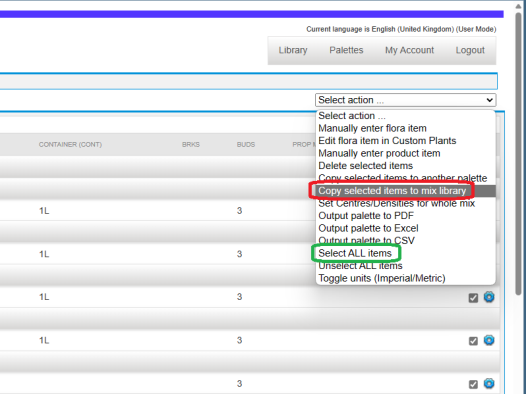
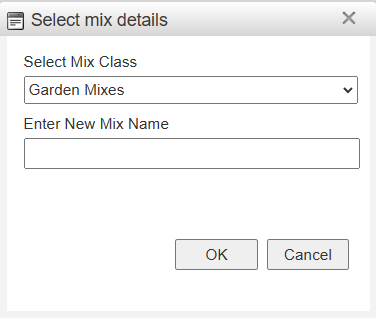
You will be prompted to select a Mix Class to add the selection and to create a name for the New Mix.
You can then open the newly created mix in the Mix Libraries (Library – Planting Mixes - <Mix Class>) and add percentages as required.
After creating the mix/es, add these to project palette/s as required.
If the plant species you require is not available in the standard libraries, you can create your own record using the Custom Plants tool. This allows landscape professionals to add project-specific plants, cultivars, or other planting content to the CloudScapes libraries, ensuring that required species can be incorporated into palettes, planting mixes, schedules, and Revit models.
Once created, custom plants can be managed in the same way as standard library content and can be added to palettes for use in detailed planting designs.
Use the Custom Plants toolto add plants to the libraries.
Use the Download Palettes tool to save a local copy of palettes created in the palette builder. Note that you may need to re-download a palette if it has been edited and you want to access the updated information.
After editing a palette in the Palette Builder, you will have to rerun the Download Palette tool to ensure that new planting placed in the model is from the modified palette. Note that re-downloading a palette will have no effect on planting already placed in the model. To update planting already placed in the model, use the various editing options (Revit properties, Edit Planting, Substitute Planting, Planting Browser).
There is no direct association between palettes (including mixes) and Revit models. You are able to select anything you wish from the downloaded palettes but then you are able to use the various editing options (Revit properties, Edit Planting, Substitute Planting, Planting Browser) to change any component placed in the model.
There is no direct relationship between a palette and an existing drawing. When planting is placed in a drawing, the planting information is stored within the drawing's planting labels and records at the time of insertion.
As a result, changing specification information in a palette does not automatically update planting labels that have already been placed in a drawing.
To update existing planting information, you must use the Edit Labels, Edit Planting, or Substitute Planting tools within the drawing.
No.
Palettes are not dynamically linked to DWG files. A palette provides the planting data used when new planting is inserted, but once planting has been placed, the drawing stores its own copy of that information.
Changes made to a palette only affect:
Existing planting records remain unchanged until edited.
No.
Editing a palette does not automatically update labels that already exist in a drawing.
Labels retain the planting specification, density, centres, and other values that were assigned when they were originally created or last edited.
To update existing labels, use:
This is expected behaviour.
Although your palette has been modified, existing planting records and labels in the drawing are not automatically refreshed from the palette. The modified palette will only be used for future planting placements unless you manually update the existing records.
There is also no indication from your description whether the modified palette has been used to place any new planting since the changes were made.
Multiple labels can be selected and updated at the same time.
Any associated Artisan schedules will automatically reflect the changes once the records in the drawing have been updated.
Yes.
You can:
This is often the quickest way to apply revised specification information across a large drawing.
Planting density and centres values are stored with the planting record when the planting is placed.
For example:
Artisan does not automatically round or replace existing values when a palette is changed.
To ensure schedules display the revised densities:
Once the drawing records have been updated, Artisan schedules will dynamically display the revised values.
Any planting placed after the palette has been updated will use the revised palette information.
For example, if you modify density values in a palette from decimal values to whole numbers: