

The following guidance outlines how to configure Artisan
products in a virtualized session-based environment.
A session-based environment refers to any setup
where:
This
model is commonly delivered using solutions such as Citrix or Microsoft Azure
Virtual Desktop (AVD), typically leveraging Remote Desktop Services
(RDS).
If your environment provides a dedicated VM per user (one-to-one),
please refer to the VDI (Virtual Desktop Infrastructure)
Setup documentation
instead.
Session-based desktops require some subtle specific configuration considerations for Artisan products, particularly in relation to licensing and automatic updates. The sections below describe the required changes.
First step will be to install the products to each server that will
host terminal sessions for your users. In all cases, the Auto Update service
will need to be installed which is a simple Msi installer downloaded from the CS
Design web site.
The Buddy App runs in the taskbar service icon area of the desktop
and communicates with the local CS Update and Licensing service which in turn
communicates with the CloudScapes web services.
Revit - If required, install the required version(s) of the CS
Artisan RV Revit AddIn.
AutoCAD - If required, install the latest version of the CS Artisan
AC Plugin.
BricsCAD - If required, install the latest version of the CS
Artisan BC Plugin.
The configuration of all Artisan products can be controlled via
registry settings. In this case being able to:
Path: HKEY_LOCAL_MACHINE\SOFTWARE\CS
Design
Type: REG_DWORD
Name: VMSessionMode
Values: 0 or
1
Notes: 0 will
force Artisan Licensing to run in normal workstation mode. 1 will force it into
session-based mode. If the registry key
doesn’t exist normal mode is assumed.
The rest of this document assumes you have set VMSessionMode ON
(ie, mode=1).
With session-based mode enabled, the licensing system will look to
the HKEY_CURRENT_USER registry hive for licence activation settings. It also
alters the respective CAD exit strategies so that the licence can be safely
de-activated without affecting other terminal sessions on that
server.
The following are the Registry settings that will need manipulating
(maybe via the group policy on large networks) to set the required
automation. The required Artisan
HKEY_LOCAL_MACHINE keys would have been installed with read / write permissions
for a standard windows user so there shouldn’t be any issues running the policy
within the context of a standard logged in user.
Path: CS Artisan RV
- HKEY_LOCAL_MACHINE\SOFTWARE\CS Design\CS Artisan RV 2026
CS Artisan AC - HKEY_CURRENT_USER\SOFTWARE\CS
Design\CS Artisan
AC
CS Artisan BC - HKEY_CURRENT_USER\SOFTWARE\CS
Design\CS Artisan BC
Type: REG_DWORD
Name: Enabled
Values: 0 or
1
Notes: 0 will
disable the Add-In for all users, 1 will Enable the Add-In for all users. UNLESS
a user has the same setting in their own CU registry which then takes
precedence. See below. To target other versions of Artisan RV, change the last
key as required, ie. 2026 to 2025 (for example).
Path: CS
Artisan RV
- HKEY_CURRENT_USER\SOFTWARE\CS Design\CS Artisan RV 2026
CS
Artisan AC
- HKEY_CURRENT_USER\SOFTWARE\CS Design\CS Artisan
AC
CS
Artisan BC
- HKEY_CURRENT_USER\SOFTWARE\CS Design\CS Artisan
BC
Type: REG_DWORD
Name: Enabled
Values: 0 or
1
Notes: 0 will disable the Add-In for that user, 1 will
Enable the Add-In. This setting will override the same setting set in the LM
hive. Note that if the Enabled key does not exist at all within the CU hive then
the LM setting is used. To target other
versions of Artisan RV, change the last key as required, ie. 2026 to 2025
(for example).
Path: CS
Artisan RV
- HKEY_LOCAL_MACHINE\SOFTWARE\CS Design\CS Artisan RV
2026
CS
Artisan AC
- HKEY_LOCAL_MACHINE\SOFTWARE\CS Design\CS Artisan
AC
CS
Artisan BC
- HKEY_LOCAL_MACHINE\SOFTWARE\CS Design\CS Artisan
BC
Type: REG_SZ
Name: Account Name
Values: as provided by CS Design.
Type: REG_SZ
Name: Licence
Number
Values: as provided by CS Design.
Notes: If operating
Group Policy, both these values should be blanked for non-Artisan users. It is
recommended that these values be entered by an Admin (or via group policy) as a
standard user may not have access or remember them.
Path: CS
Artisan RV
- HKEY_LOCAL_MACHINE\SOFTWARE\CS Design\CS Artisan RV
2026
CS
Artisan AC
- HKEY_LOCAL_MACHINE\SOFTWARE\CS Design\CS Artisan
AC
CS
Artisan BC
- HKEY_LOCAL_MACHINE\SOFTWARE\CS Design\CS Artisan
BC
Type: REG_DWORD
Name: Auto
Deactivate
Values: 0 or
1
Notes: 0 to KEEP product activated. 1 to deactivate. If
in session-base mode, this option has no effect as it will always be overridden
to true when exiting Revit / AutoCAD / BricsCAD.
The Buddy App must be started with every
session. This should happen by default as
the installer will add a shortcut to the startup
folder. The Buddy App needs to be running
because it deals with the de-activation of the respective licence, so must be
running during the session. The Auto Update
feature of the Buddy App will not work in session-based
mode. It has been deliberately disabled in
this mode given that other sessions may be using files that might require
updating. Instead, the updates should be
checked periodically by an admin personnel by manually launching the buddy app
with an “admin” switch and checking for updates (other users / sessions will
need to be logged off).
C:\Program Files (x86)\CS Design\Auto Update
Service\CSD_BuddyApp.exe admin
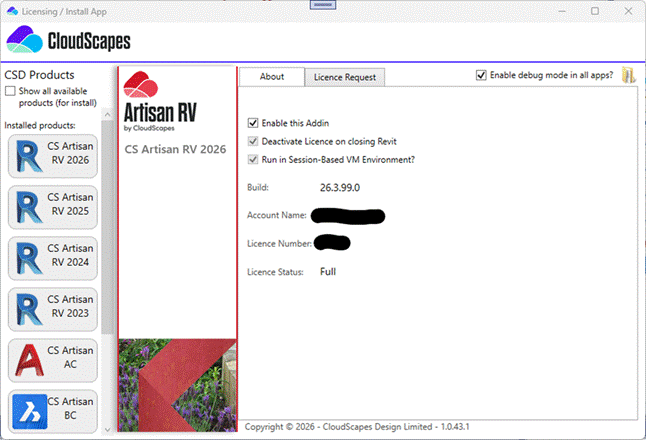
The image below shows the licensing tool. It will
launch at the start of every Revit / AutoCAD / BricsCAD session,
provided:
· the current users “Enabled” reg key is set to 1
(or does not exist).
· The current terminal session hasn’t already been
licensed (a second Revit instance in the same session would not trigger the
licensing tool for example).
Note that the “Run in Session-Based VM
Environment” check box is Disabled. This setting can only be set manually
through the registry. The check box visually reflects this
setting.
[HKEY_LOCAL_MACHINE\SOFTWARE\CS
Design]
"
VMSessionMode"=dword:00000001
[HKEY_CURRENT_USER\SOFTWARE\CS Design\CS Artisan RV
2026]
“Enabled"=dword:00000001
[HKEY_LOCAL_MACHINE\SOFTWARE\CS Design\CS Artisan RV
2026]
"Auto
Deactivate"=dword:00000001
"Account Name"="YourAccountName"
"Licence Number"="YourAccountNumber"