

The Preferences dialog displays the settings for the currently loaded file (*.xml format) and by deafult this will be the same as the Preferences file that has been set for the current drawing. Note that it is possible to load a previously saved Preferences file to view/change settings and to save this or copy to another file without overwriting the Preferences file (i.e. default settings) for the current drawing .
The preferences file commands are available from the File menu on the Preferences dialog.
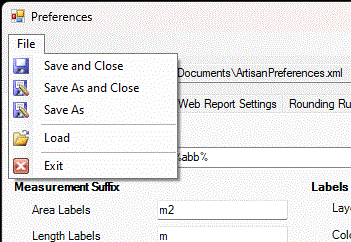
If you have created a different Preferences file that you want to view or modify, pick Load from the File menu. Pick Save As and Close or Save As to copy the current Preferences file as required. Note that the Save preferences to current drawing option (located at the bottom of the dialog), if selected, means that the currently loaded Preferences file settings will be applied automatically to the current drawing.