Format Tab - Report Designer
Define the appearance of reports including text settings, lines and colours.
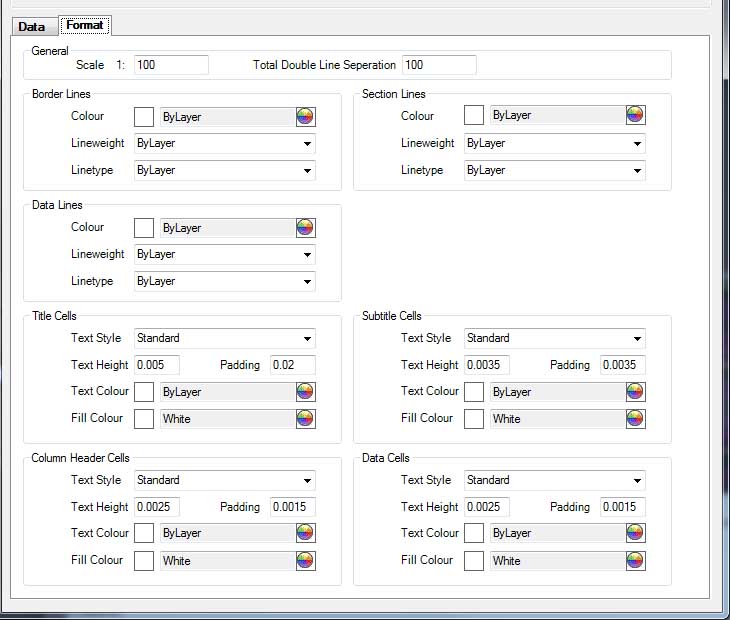
The format tab affects the visual appearance of the report.
General
Scale - The overall scale of the report. The report will be drawn in CAD according to the various sizes specified in this report dialog multiplied by the scale. Therefore if working in model space enter the scale that the drawing will be eventually printed out at and then the report will appear on paper the according to the column and text sizes entered.
Total Double Line Seperation - The total lines, if used, will be seperated from the main data line by a double line. This setting controls the seperation width of this double line.
Border Lines, Section Lines, Data Lines
These sections control the appearance of the lines drawn within and around the report. Border lines are the outside boundary, section lines the line between each sub titled section of the report, data lines are all the other lines.
Colour - The colour of the line.
Lineweight - The thickness or weight of the line.
Linetype - The CAD linetype or style of the line.
Note: The actual appearance in CAD will also depend on the CAD settings, such as layer settings.
Title Cells, Subtitle Cells, Column Header Cells, Data Cells
These sections control the appearance of the text and fill with the cells and also the cell height. The title cell is the top row of the report containing the title. The Subtitle cells are the rows containing sub titles or section headings. The Column Header Cells are the cells containing the titles of the various columns within the report. The Data cells are all the other cells, including totals.
Text Style - The style of the text used in the cell.
Text Height - The height of the text used in the cell.
Padding - The gap between the text and the cell edge / boundary.
Text Colour - The colour of the text.
Fill Colour - The colour of the space or background within the cells.
Colours

Next to each colour definition is the above symbol. Clicking on this symbol will display the Windows Colour Selector dialog. Use this dialog to select the colour that the various sections of the report will use. Either a built in Windows colour (which may also be a built in CAD colour) or a custom defined colour may be used.
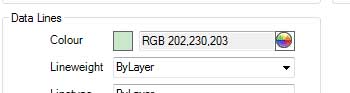
Custom defined colours with a very light shade are often best for Fill Colour usage. Custom colours will be displayed on the main report dialog with both a preview colour square and also an RGB (Red, Green, Blue) definition. This allows the definition to be noted and then manually entered into either the Windows Colour Selector or other applications to reproduce the colour.
|
|
|
|
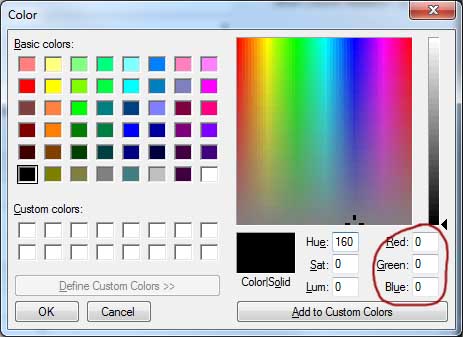
| Display of a custom colour within the report template editor. Note the RGB values (Red = 202, Green = 230, Blue = 203). The colour square shows a preview of the colour (light green). | Default view of the Windows Colour Selector Dialog. Note the button "Define Custom Colors". Click this to define a custom colour (such as the light green shown opposite). | View of the
Windows Colour Selector Dialog after "Define Custom Colors" has been clicked. The hightlighted area shows where the RGB information should be enteted to duplicate an existing colour. |
File

The file menu allows the edited report to be saved.
Save - Save the report to its source. If the edit has been initiated from the preference file then the report will be saved back to the preference file. If the edit has been initiated from an existing report then the existing report will be edited.
Save to File - Save the report to an Xml file. The file can then be used in another drawing, on another machine as needed.
Close - Close the edited report without saving.
Links