Purpose
Select a Seed Mix item to add to a palette.
Usage
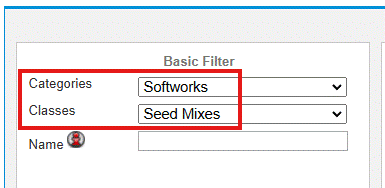
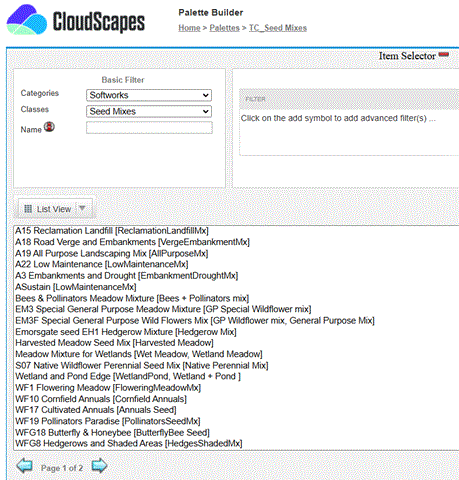
1. From the Basic Filter area, select the Softworks Category and the Seed Mixes Class.
The
filtered library view will display all available Seed Mixes in the
Softworks category...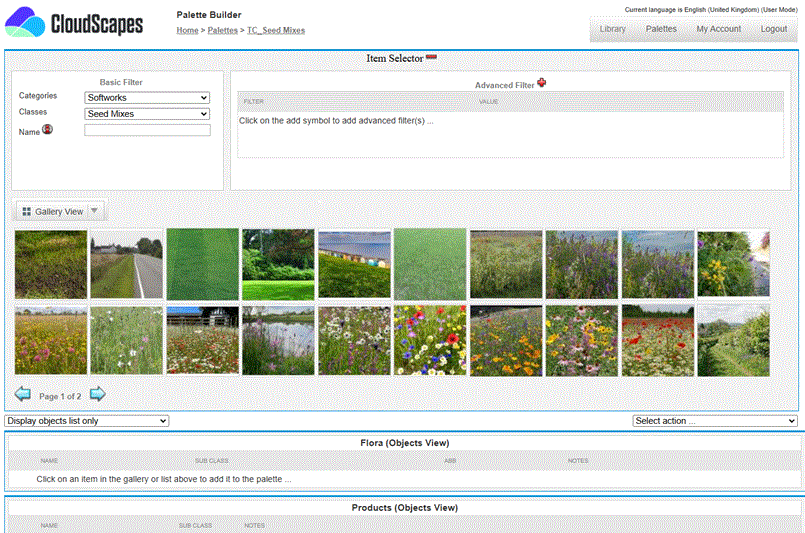
If
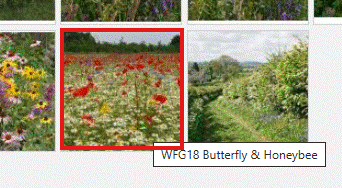
'Gallery View' has been selected in the Libraries area, images are displayed as
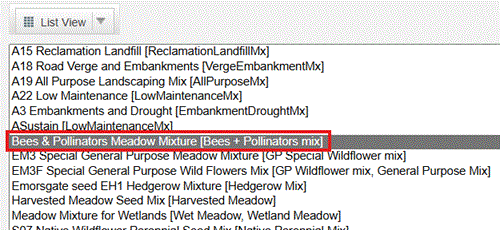
above of all available Seed Mixes. If 'List View' has been selected, the
filtered library area is displayed
|
|
Select an item by either clicking on its name in the list view or clicking on its image in the gallery view. |
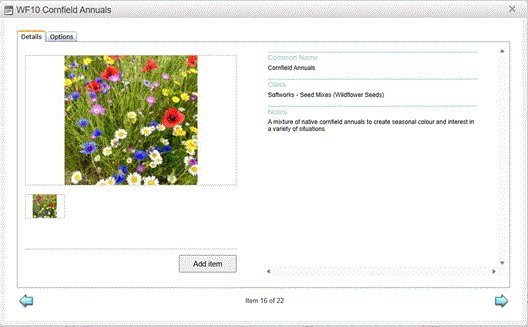 |
The Characteristics dialog for this item displays. In the characteristics tab the images are displayed on the left and characteristic details are displayed on the right |
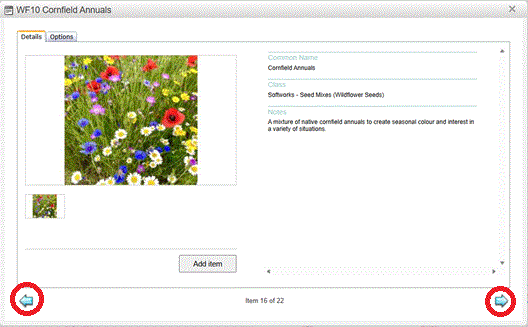 |
Use the back and forward navigation buttons to navigate through all the items in the current filter selection without closing the dialog and returning to the Palette Builder page. |
5. Options Tab
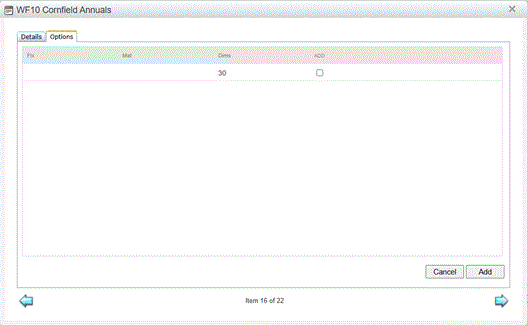 |
The Options dialog is not relevant to Seed Mixes. |
 |
Pick the Add Item button to add the selected Seed Mix to the palette. |
7. Edit Details
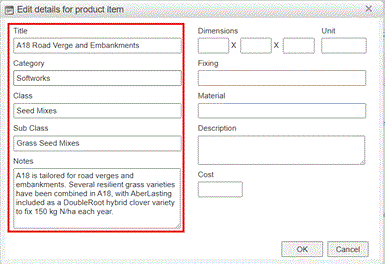 |
Once a Seed Mix has been added to a palette, select Edit Options (righ-mouse pick 'cog' icon) to modify details as required. |
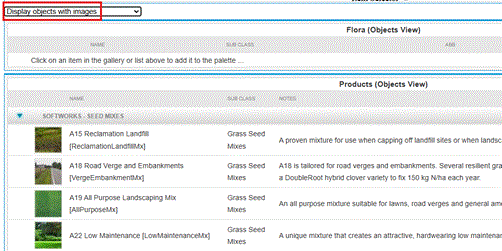 |
Palette - Display Objects with Images |
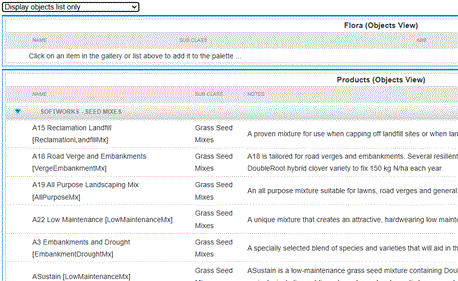 |
Palette - Display Objects List Only |
9. Output to PDF
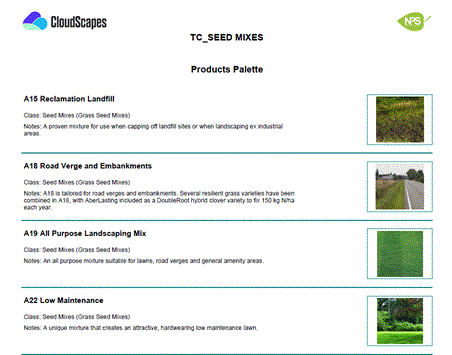 |
Palette - Output to PDF |