

Create a new palette for Seed Mixes and select from the Manage Palettes to edit...
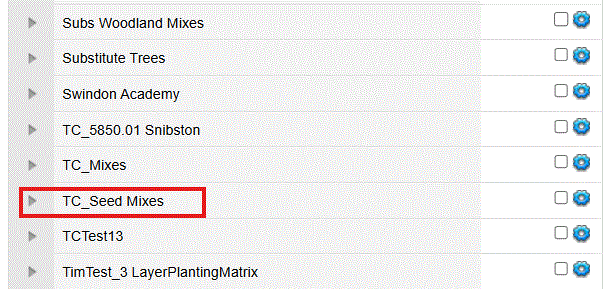
Edit a palette held on the web application.
Usage
The Palette Builder dialog will display.
From the Basic Filter area, select the Softworks Category and the Seed Mixes Class.
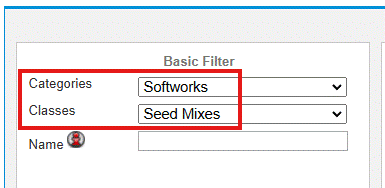
The
filtered library view will display all available Seed Mixes in the
Softworks category...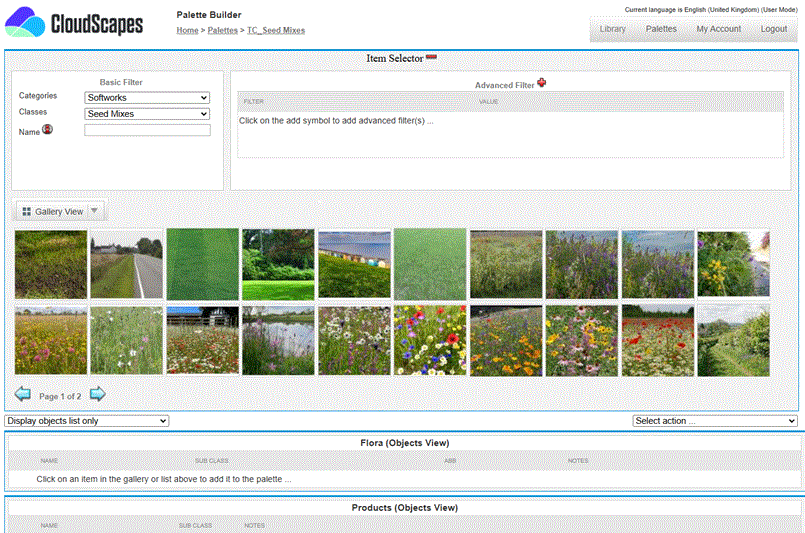
If
'Gallery View' has been selected in the Libraries area, images are displayed as
above of all available Seed Mixes. If 'List View' has been selected, the
filtered library area is displayed
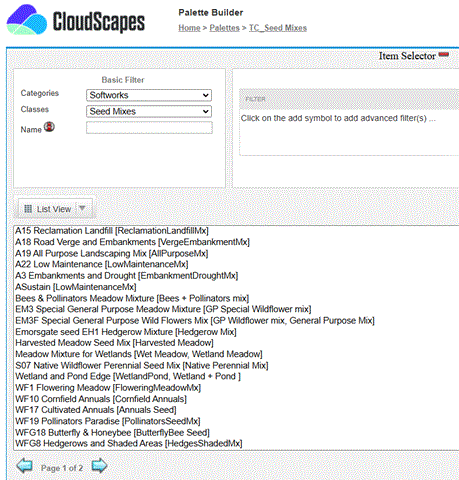
Picking a Seed Mix from the Gallery View or List View, displays further associated information.
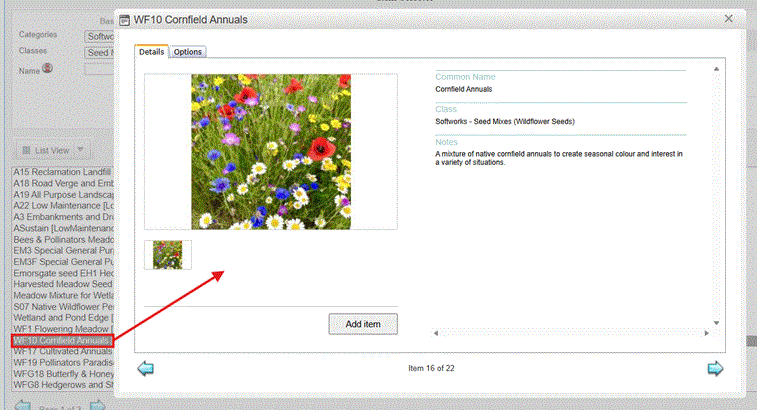
Note that the Advanced Filter area only applies to detailed planting, so navigating Seed Mixes is achieved simply via the Basic Filter options.
There are a number of operations that can be performed from the Palette Builder:
| Insert Item into Palette | Insert an item from selection into palette |
| Change Display Mode | Change the display detail of the palette |
| Manually Enter Item | Enter manually entered items directly onto
palette (only available in Object and Options view) |
| Edit Selected Item |
Edit an existing palette item |
| Delete Selected Items | Delete palette item(s) |
| Copy Selected Items to Another Palette | Copy palette item(s) to a different palette |
| Output Palette to PDF | Export palette contents to a PDF file |
| Delete All Items | Delete all the items from a palette |
Notes
A single palette must be selected to edit a palette.