Previous topicNext topic

Help > ArtisanRV_xx.4.1.0 CS Web App >

ArtisanRV

Output Palette Options

Outputting Palettes

Once a palette has been created, ArtisanRV users can generate a range of outputs directly from the CloudScapes Web App. Although the primary purpose of a palette is to define and manage planting selections for use with dynamic Revit content, output options provide a convenient way to share planting proposals, obtain design approval, and distribute planting information to project stakeholders.
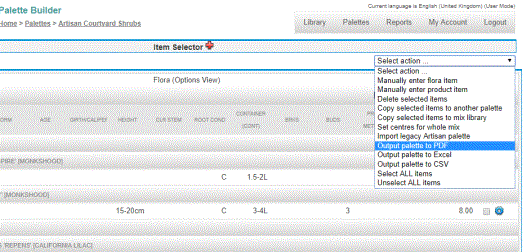

The option ‘Output palette to PDF’ is available from the Select action menu in the Palette Builder...


Why Output a Palette?

Palette outputs can be used to:

  • Present planting proposals to clients and project teams.
  • Share planting selections with landscape architects and consultants.
  • Review planting information before placing content in Revit.
  • Create graphical reference documents for design approvals.
  • Maintain a record of planting selections throughout a project lifecycle.

Output to PDF

One of the most popular output options is Output to PDF.

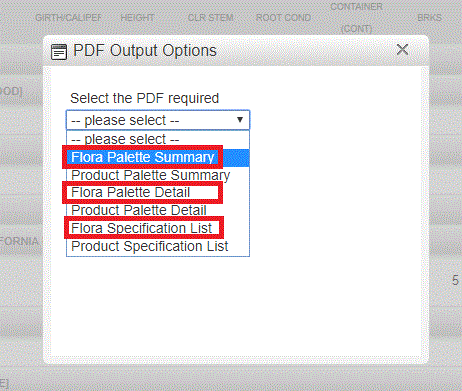
Select Flora Palettes for Planting.

There are a number of PDF output options...
The PDF output generates a professionally formatted document containing:

  • Palette name and project information.
  • Plant images where available.
  • Botanical and common names.
  • Key planting information and specifications.
  • A graphical layout suitable for review and sharing.

This provides a simple way to communicate planting intent without requiring recipients to access ArtisanRV, Revit, or the CloudScapes Web App.

Benefits of PDF Output

PDF outputs are particularly useful when:

  • Presenting planting concepts to clients.
  • Seeking design approval.
  • Sharing planting proposals with stakeholders who do not use ArtisanRV.
  • Issuing planting information as part of a design package.
  • Maintaining project records and documentation.

Creating a PDF Output

  1. Open the required palette within the CloudScapes Web App.
  2. Select the Output option.
  3. Choose PDF from the available output formats.
  4. Review any output settings that may be available.
  5. Generate the PDF.
  6. Save or distribute the resulting document as required.

Example

The following video demonstrates how palette information can be output and shared as a graphical PDF document:

Video: Palette PDF Output Example

Related Topics

  • Creating Palettes
  • Editing Palettes
  • Managing Plant Selections
  • Revit Integration
  • Placing Dynamic Plant Content
  • Publishing and Sharing Project Information

Tip: PDF output is often the quickest way to communicate planting proposals to clients and project stakeholders, providing a clear visual summary without requiring access to ArtisanRV or Revit.