Previous topicNext topic

Help > ArtisanACAD_27.1.56.0 Planting > Planting Labels > Label Insertion Options >

Artisan Landscape for AutoCAD & BricsCAD

Additional Data Fields for Labels

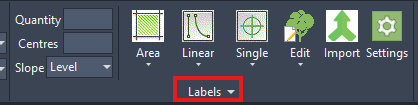
Additional data fields can be applied to labels, providing powerful options for grouping, sorting and filtering project information in schedules and are available from the pop-down menu below the Labels panel on the Artisan ribbon.

Additional Data Fields can be populated when labels are being placed or subsequently when editing label information.

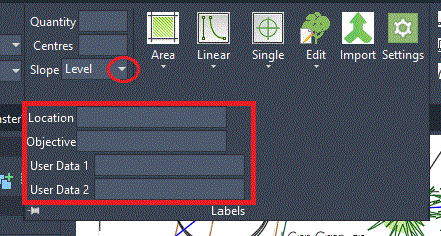
To define Additional Data Fields when placing labels, pick the pop down menu at the bottom of the Labels panel.

Users are able to add information in any of the available text boxes...

  • Location
  • Objective
  • User Data 1
  • User Data 2
By default, an Artisan schedule will display ALL ARTISAN LABEL records that will be grouped/sorted and include fields and associated headers in the order defined in the report template assigned.
 
Defining Additional Data Fields, enables users to separately organise schedules to include (or exclude) associated label information to satisfy project requirements.
 
Add text as required in the Additional Data Fields and insert labels.
 
Note that information applied to Additional Data Fields will not be automatically displayed when labels are inserted, but can be included if users include the associated expressions in the Label Template.


Location

%userdatalocation%

Objective

%userdataobjective%

User Data 1

%userdata1%

User Data 2

%userdata2%


Note: Additional Data Fields can be populated or modified after placing labels using Edit Labels tools.

The Report Designer utility allows users to define or modify the Data (what is displayed and in what order) and the Format (text sizing, lines and colour fills). In the Data area, arguably the most important area is Data Filters, where users define what records are/are not included in the schedule.

To view (or change) the settings of a schedule (report) already inserted in a drawing, select the schedule in the drawing and pick Insert Report from the Artisan ribbon…

No alt text provided for this image

The Report Designer is displayed showing the existing template for the selected schedule…

No alt text provided for this image

In the example above, only those labels that are included in the Category ‘Planting’ are included.

Other options may include…

No alt text provided for this image

Schedule templates can be saved to file for re-use in other drawings or projects or by other team members and it is common to create and maintain standard schedule formats within an organisation.

Planting schedule with Centres and Densities...

No alt text provided for this image

Non Planting Schedule...

No alt text provided for this image

Tim Calnan, Director, CloudScapes

CloudScapes Design Limited (CSD) produce powerful landscape design solutions based on Revit, AutoCAD and BricsCAD technology. The suite of web-integrated software has been designed and supported by landscape experts over the last three decades and is regarded by landscape architects, garden designers and design professionals across the UK and internationally as including the must-have design tools for any landscape toolbox.