

When the host program is run for the first time, you will be asked to authorise your licence. Alternatively, you can request a licence by using the “Request Licence” tab in the same “Licence, Settings and Install” form you used to install the product from.
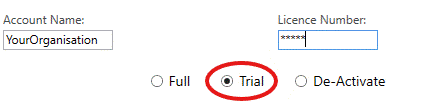
Enter your organisation's unique login credentials, select ‘Trial’ for a time-limited version,
Pick‘Submit Request'...
Trial Licences provide full access to CS ArtisanRV time-limited to 30 days from the date of activation.
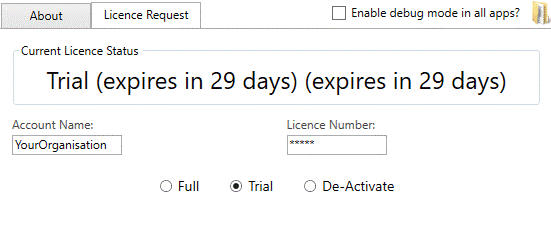
The Current Licence Status is displayed at the top of the window...
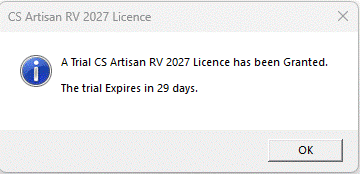
A confirmation box displays when the Trial Licence will expire...
Ensure you are operating the most up to date version of your
software by right-clicking the Buddy App icon in the taskbar and selecting
“Check for Updates”.
Note that the Buddy App needs to be operational for licensing
and needs to be installed initially with full administrator privileges.
There is no requirement for users to manually download or install updates as the
CSD Auto Update service is designed to handle this service in the background
using pre-authorisation.
Full read/write access is required to C:\Artisan Documents, where user-defined Artisan settings files and palettes are stored.
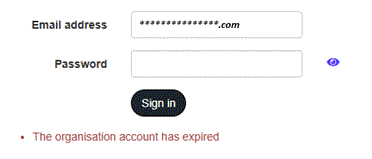
At the end of the of the trial period (30 days after activation), the software will no longer be accessible. Users will be confronted with a message to confirm that the trial licence or the organisation account has expired when attempting to run CS ArtisanRV (or attempting to access the CS Web App)...
To continue operating CS Artisan after a trial licence has expired, a subscription will need to purchased via the CloudScapes Website or by Contacting CloudScapes .